Notifications
View order alerts, stock warnings, and system notifications.
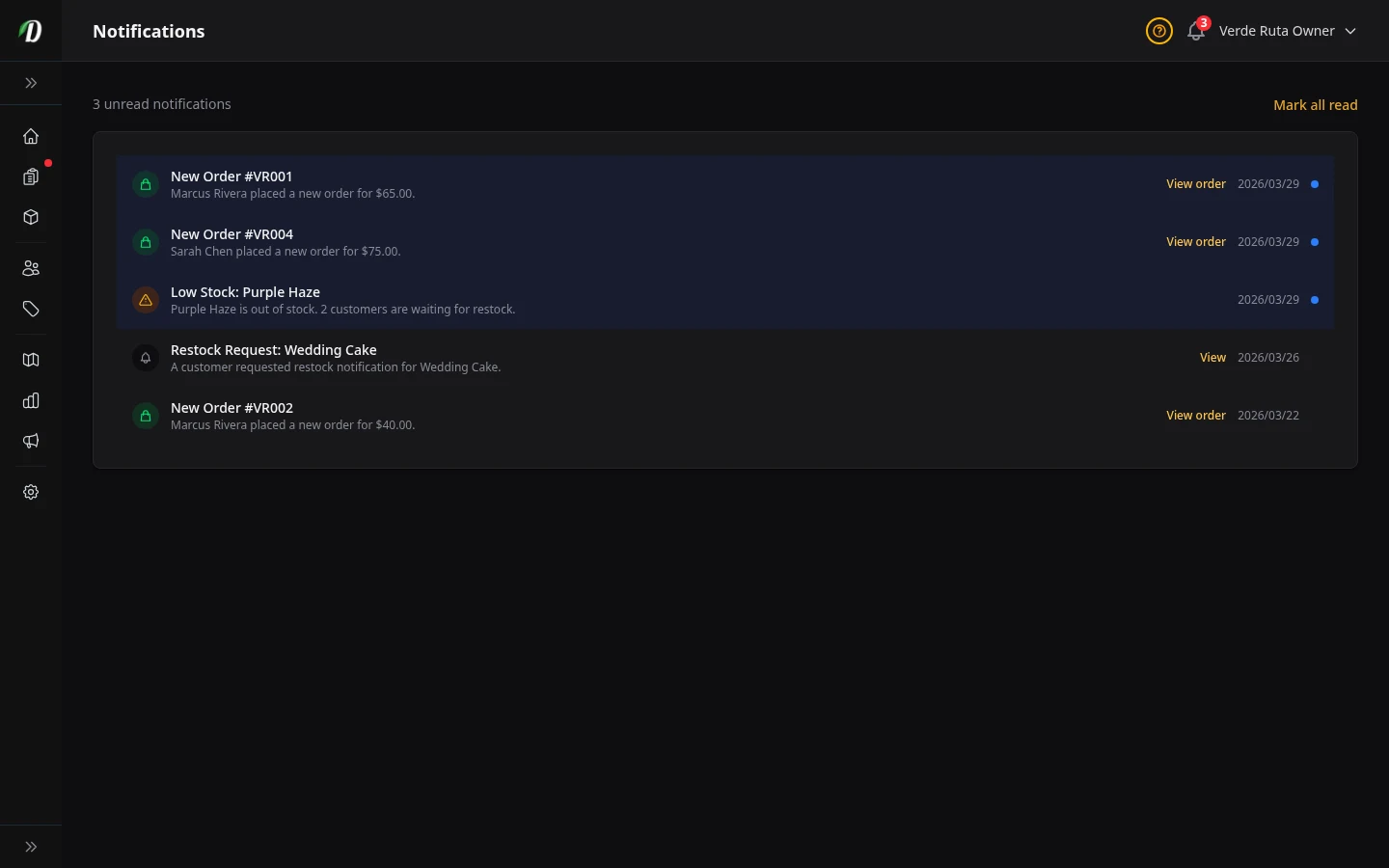
Overview
DabDash shows an alert in your admin whenever something important happens — for example, a new order or a low-stock warning. All alerts appear on this page, newest first.
Unread notifications are highlighted in blue. The bell icon in the sidebar header shows a count badge when you have unread notifications waiting.
Notification Types
- Order Received
- Shown when a customer places a new order. Click View order to open it and move it through your delivery steps.
- Low Stock
- Triggered when a product's stock quantity falls at or below its low-stock alert threshold. Click View inventory to open the filtered inventory view and restock it. You can set the threshold on the Inventory page.
- Issue Status Changed
- Shown when one of your reported issues changes status — for example when our team moves it forward or resolves it. Click through to see the update.
Marking Notifications as Read
A notification is marked as read automatically when you click its View order or View inventory link. To clear all unread notifications at once, click Mark all read in the top-right corner of the page — this removes all blue highlights and resets the sidebar badge to zero.
Tips
- Check notifications at the start of each shift. A pending Order Received notification means a customer is waiting for confirmation.
- Set low-stock thresholds on your fastest-moving products so you get advance warning before running out — not after.
- Use "Mark all read" at the end of each day to keep the sidebar badge meaningful — a badge of 0 means you're up to date.
Frequently Asked Questions
Where do I see order alerts and stock warnings in DabDash?
Click Notifications in the sidebar. Unread alerts are highlighted in blue with the notification type (new order, low stock), a brief description, and a direct link to the related order or product. The sidebar icon shows a live unread count badge.
How do I clear all notifications in DabDash?
Click Mark all read in the top-right corner of the Notifications page to clear all unread highlights and reset the sidebar badge to zero. Individual notifications can also be marked as read by clicking through to the linked order or product.