Customer Directory
Browse customer profiles, order history, loyalty points, and saved addresses.
Overview
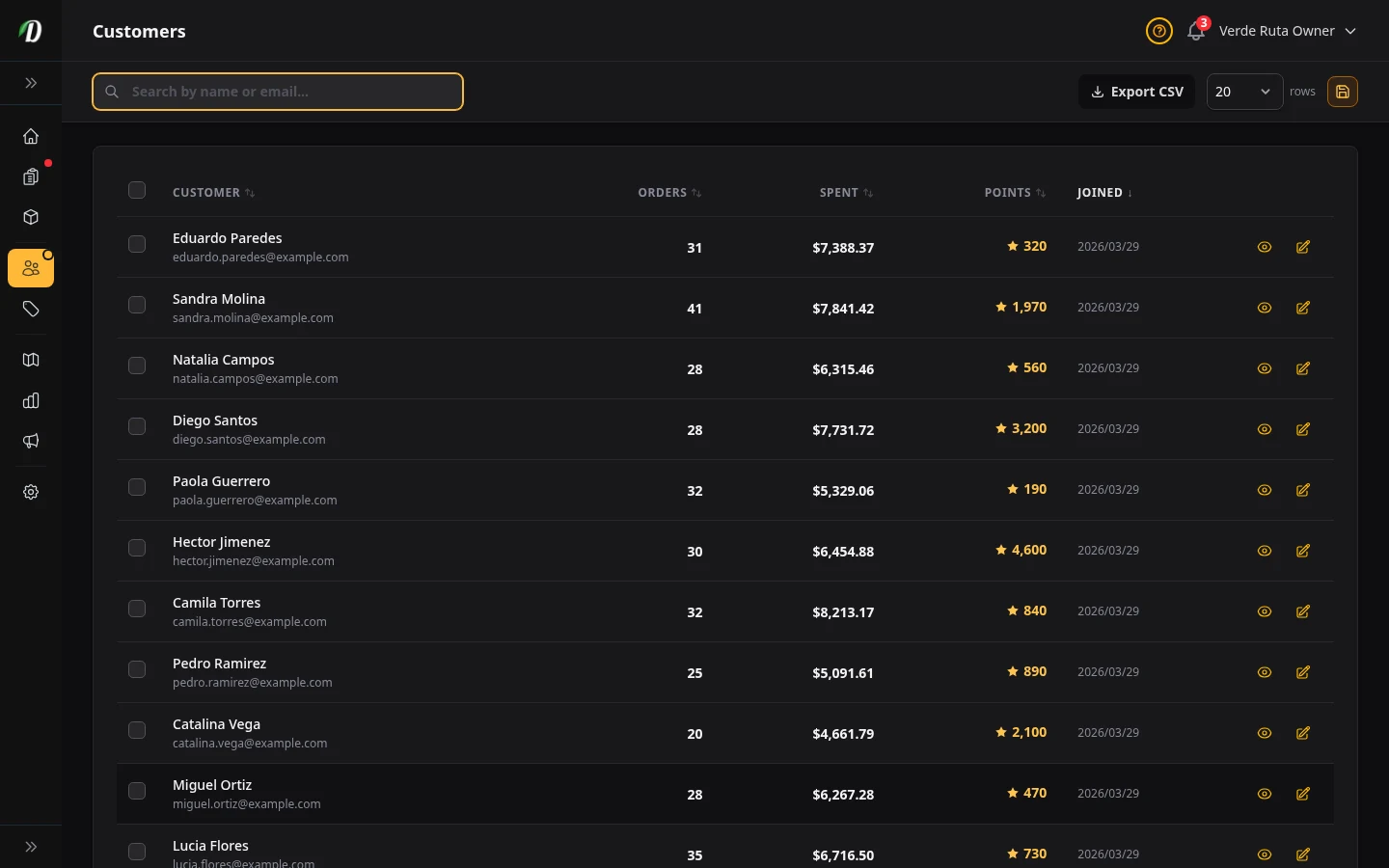
The Customer Directory shows customers who made at least one order in your storefront. From here you can search, sort, open profiles, export, and run bulk actions.
Customers appear here automatically when they create an account on your storefront — you do not need to add them manually. Guest shoppers do not appear in this list.
Searching & Sorting
Use the search box at the top to find a customer by name or email address. Results narrow as you type.
Click any underlined column header to sort by that column. Click again to reverse the direction. You can sort by:
| Column | What it shows |
|---|---|
| Customer | Name (alphabetical) and email address. |
| Orders | Total number of completed orders. Useful for identifying your most frequent buyers. |
| Spent | Total spent so far across all orders. Sort high to low to find top spenders. |
| Points | Current loyalty points balance. Only visible when loyalty is active. |
| Joined | When the customer created their account. Sort ascending to see your earliest customers first. |
Customer Profile
Click any customer's name to open their full profile.
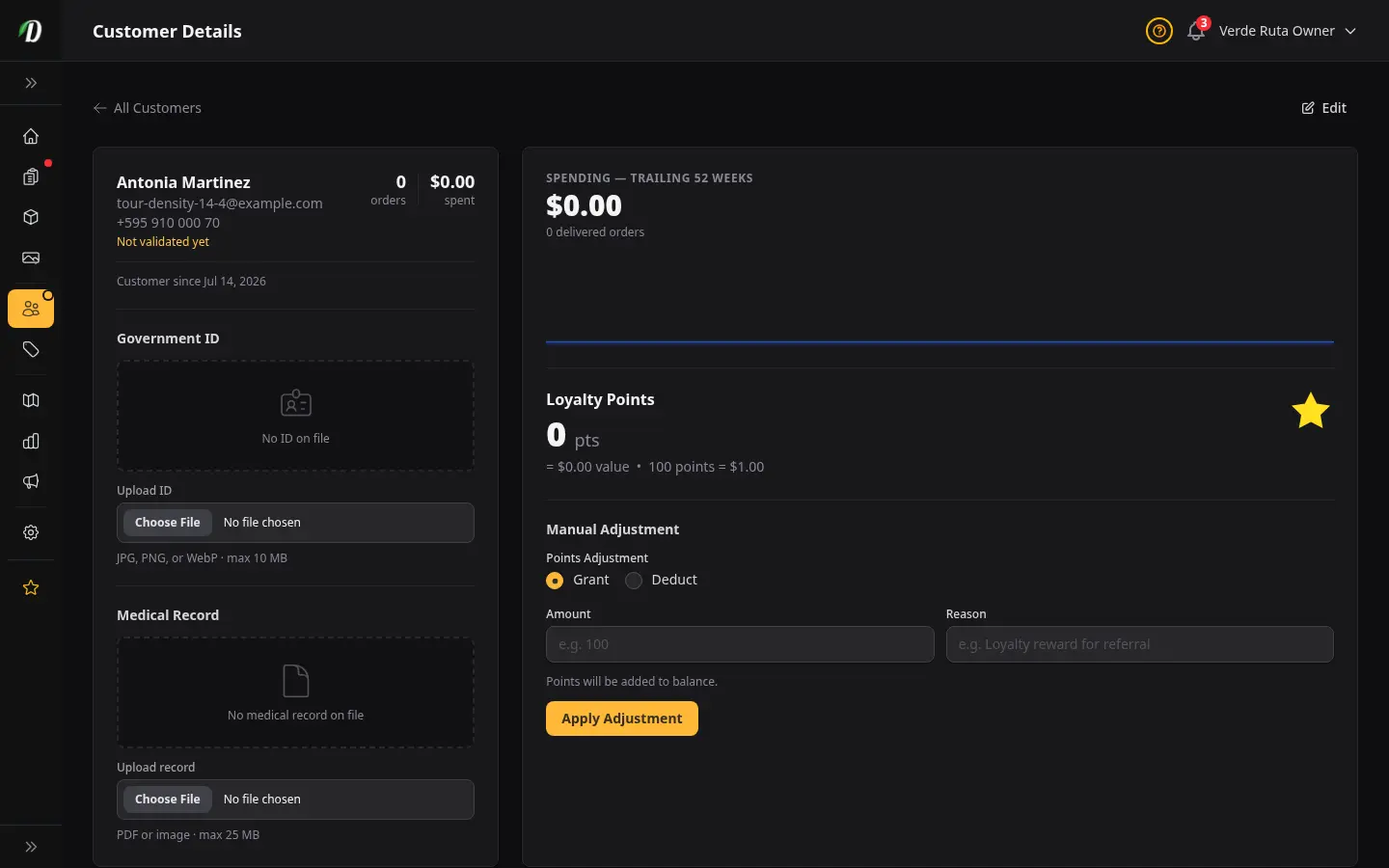
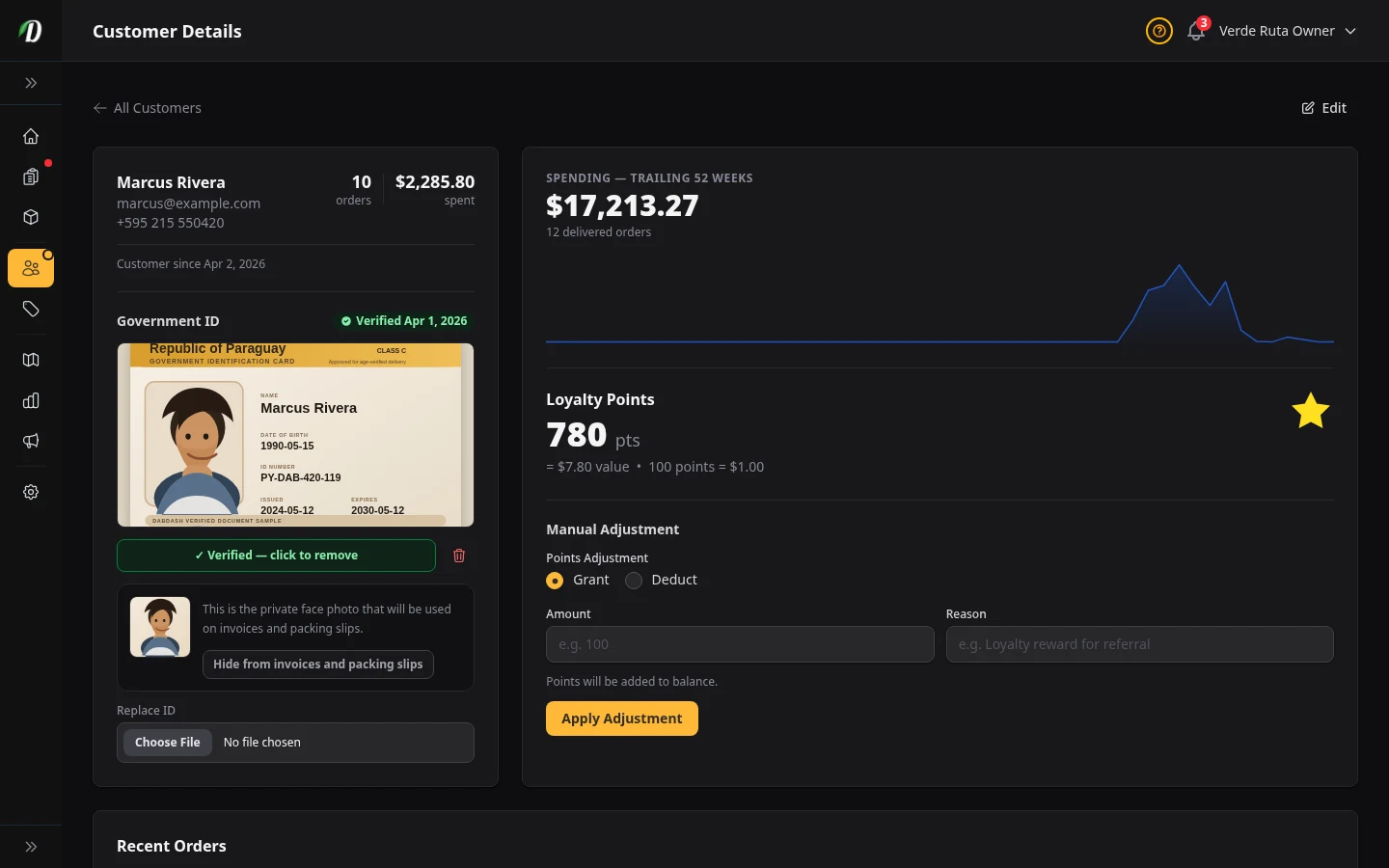
- Contact details
- Name, email address, and phone number. Displayed at the top of the profile alongside the customer's join date.
- Lifetime stats
- Total number of orders placed and cumulative spend — useful for identifying your most valuable customers.
- Loyalty Points
- The current points balance and its dollar equivalent. You can manually adjust the balance here — select Grant or Deduct, enter the number of points, add a reason for your records, then click Apply Adjustment. Use this to correct errors or reward customers outside of the normal purchase flow.
- Recent Orders
- A chronological list of all orders placed by this customer. Each row shows the order number, date, total, and status. Click an order number to open the full order detail.
- Government ID
- If your store requires ID verification at checkout (configured in Settings → Compliance), uploaded ID photos appear here. A green Verified badge shows the date you approved the ID. Use Mark as Verified to approve an ID, click the badge again to remove the approval, use the rotate button to fix orientation, or use the remove button to delete the image entirely.
- Saved Addresses
- Every delivery address the customer has saved on their account — labelled Home, Office, or a custom name. Useful when verifying delivery zones or resolving address queries.
Exporting the Customer List
Click Export CSV to download a spreadsheet of the current list. If a search filter is active, only matching customers are included.
The CSV includes: name, email, phone, total orders, total spend, loyalty points balance, and join date. Clear the search first if you want to export all customers.
Bulk Actions
Select one or more customers using the checkboxes on the left of each row — or check the header checkbox to select everyone on the current page. Once customers are selected, a dark action bar slides up from the bottom of the screen with two options:
- Reset Points
- Zeros out the loyalty points balance for all selected customers. Useful after a programme reset or a policy change. This action requires confirmation.
- Delete
- Permanently removes selected customer accounts. Order history stays for records, but those customers can no longer sign in. This cannot be undone.
Frequently Asked Questions
How do I view a customer's order history in DabDash?
Go to Customers, find the customer by name or email, and click their row. The customer profile shows all past orders with statuses, dates, and totals, plus their loyalty points balance, saved addresses, and account creation date.
How does the customer loyalty points system work in DabDash?
Customers earn points on every completed order based on the earning rate you set in Settings → Shop. Points appear in the customer account and can be redeemed at checkout for a dollar discount based on your redemption rate. You control both rates.
Can I export my customer list from DabDash?
Yes — click Export CSV on the Customers page to download your full customer directory as a spreadsheet. The export includes customer names, email addresses, phone numbers, order counts, total spent, and loyalty point balances.