Dashboard Overview
Understanding your dashboard metrics, revenue charts, and recent orders at a glance.
Overview
The Dashboard is the first page you see after you sign in. Think of it like the front counter of your online store: you can quickly see how busy the day is, what needs attention, and where to go next.
If you refresh this page, the numbers refresh too. It is meant for quick daily check-ins, like opening shift and closing shift.
Example Data Banner
Some stores see a yellow message at the top that says you are viewing example data. This is practice data (sample products, sample orders, and sample customers) so you can learn the dashboard safely.
When you are ready to run your real store, go to Settings → Tools to clear example data. The banner includes a Manage in Settings → Tools link that takes you directly there. Clearing removes all sample items and keeps only your real setup.
Important: clearing example data cannot be undone. Only do it when your team is ready.
Setup Checklist
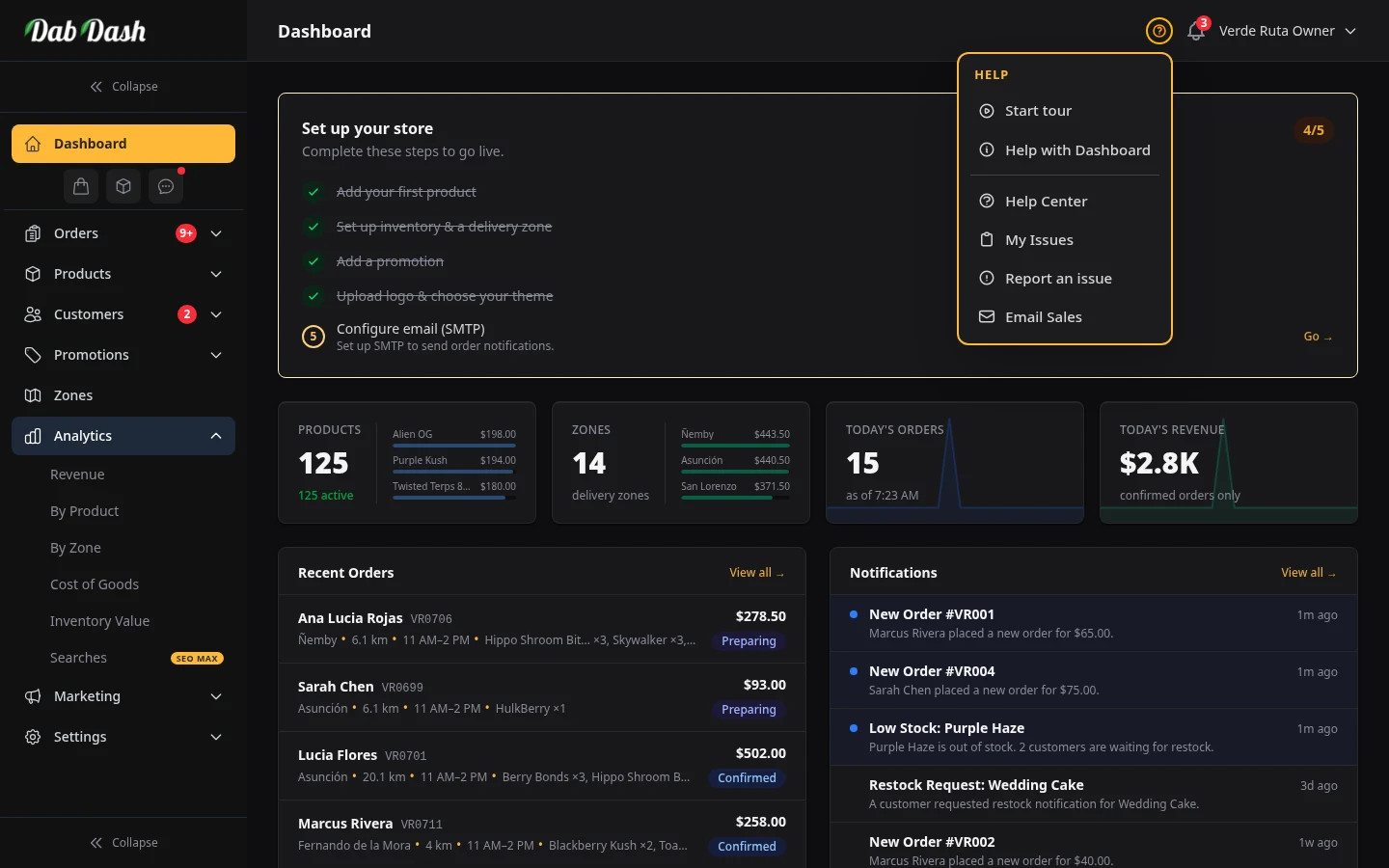
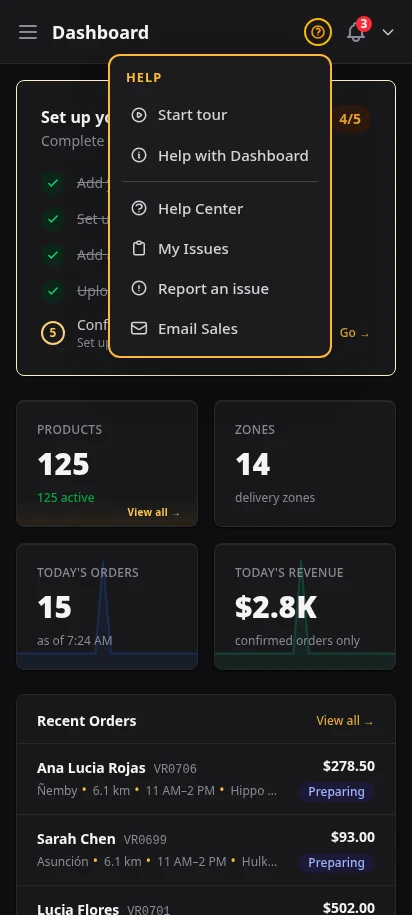
New stores see a Set up your store checklist. Each line has a Go → link that opens the right page.
The badge in the top-right (for example, 3/5) shows your progress. Finished steps get a green check mark.
| Step | What it does |
|---|---|
| Add your first product | Add at least one item with size options and a price so shoppers can place a real order. |
| Set up inventory & a delivery zone | Set your stock amounts and draw your delivery area so checkout can tell shoppers if you serve their address. |
| Add a promotion | Set up a coupon or free gift to help convert first-time buyers. |
| Upload logo & choose your theme | Add your logo and choose your store look so your shop matches your real brand. |
| Set up store emails | Connect your store email sending so customers get order updates and confirmations. |
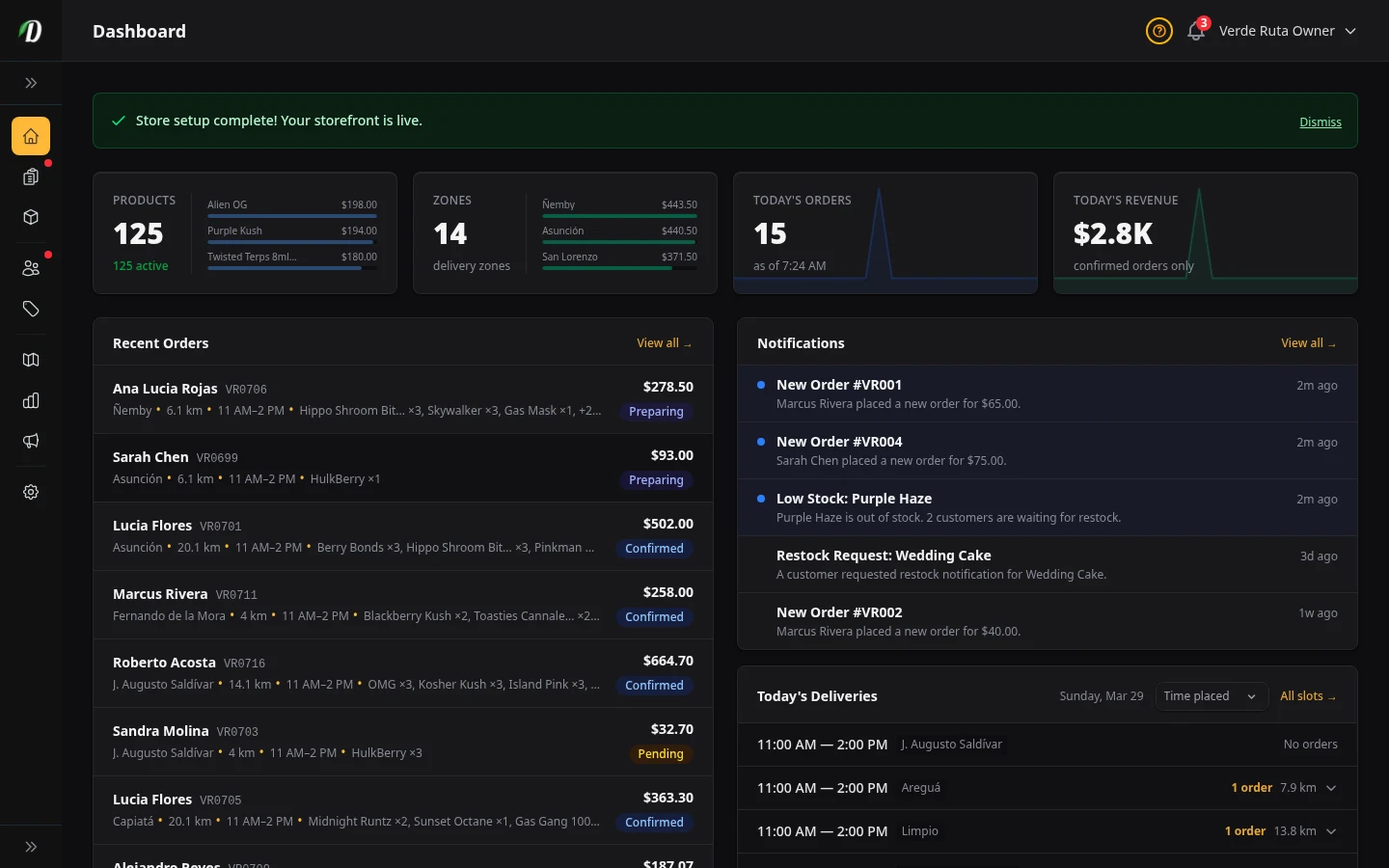
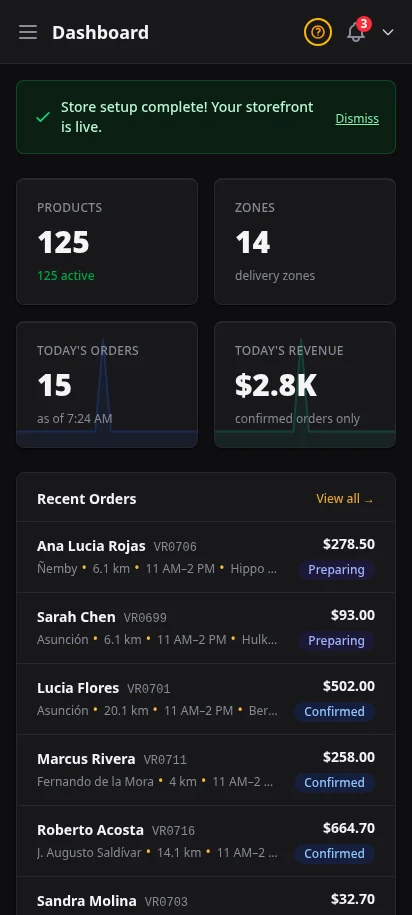
After all steps are done, the checklist is replaced by a green success banner telling you your store is live.
You can click Dismiss on that banner if you want a cleaner dashboard.
At a Glance Stats
Four number cards sit below the checklist. They help you answer this fast: "How is the store doing today?" Each card is clickable and takes you directly to the relevant page.
- Products
- Shows total products plus how many are active right now. Active items are visible to shoppers. Inactive or archived items are not.
- Zones
- Shows how many delivery zones you have. If you have none, this card gives you a Create first zone link.
- Today's Orders
- Shows today's order count and includes an "as of" time so you know when that number was last checked.
- Today's Revenue
- Shows money from confirmed orders today. Large numbers are shortened (for example, $1.1K means $1,100).
Low Stock Alert: if items fall below your low-stock line, a red warning appears with a direct View inventory link.
10 Most Recent Orders
The 10 Most Recent Orders card shows your newest 10 orders. This helps you spot what needs action right now.
| Status | What it means |
|---|---|
| Pending | Payment received. Waiting for you to confirm. |
| Confirmed | You've accepted the order. It's in your queue. |
| Preparing | Being packed and made ready for the driver. |
| Out for Delivery | On its way to the customer. |
| Delivered | Order arrived at the customer address. |
| Completed | Order is fully closed on your side. |
| Cancelled | Order was stopped before delivery. |
| Reversed | Order was reversed — inventory and points restored as chosen. |
Use the full Orders page when you need full order handling, like status updates, invoice printing, packing slips, refunds, and exports.
Today's Orders & Other Cards
Below the stats and recent orders, the dashboard shows a few working cards you'll use throughout the day:
- Today's Orders
- Groups the orders due today by delivery slot. Each slot lists its orders with the customer's phone (tap to call) and the route distance, and you can sort by time or by distance to plan an efficient run.
- Notifications
- Shows your most recent notifications with an unread badge. Click one to jump straight to what it's about — a new order, a low-stock product, or an issue update. (The bell in the top bar shows the same alerts.)
- Low Stock
- When products fall to or below their low-stock threshold, they appear here with their tracking type and remaining quantity, so you can restock before you sell out.
- Metrc unmapped products
- US stores using Metrc see an alert here if any products aren't yet linked to a Metrc package, with a link to fix the mapping in Settings → Metrc. It only appears when there's something to map.
Quick Actions
These are fast shortcuts for the jobs most stores do every day.
- Add Product
- Create a new item quickly when a new strain or product line arrives.
- Create Zone
- Draw a new delivery area and set delivery fee plus minimum order.
- Update Stock
- Adjust stock counts when you receive inventory, sell through, or fix a count mistake.
- Set Pricing
- Set your price ladders (for example, 1g, 3.5g, 7g) so product pricing stays consistent.
Navigation
The left sidebar is your main menu for the whole admin. On mobile, tap the ☰ button to open it.
| Section | What's here |
|---|---|
| Dashboard | Today's store snapshot: setup progress, numbers, recent orders, and quick actions. |
| Orders (group) | Orders plus Delivery Slots for scheduling. Notification badges appear when orders need attention. |
| Products (group) | Products, Categories, Inventory, Pricing, and Restock Alerts. |
| Customers (group) | Customers and Inbox. Inbox can show unread count badges. |
| Promotions (group) | Coupons and Freebies to drive repeat sales. |
| Zones | Delivery boundaries, fees, and minimum order rules. |
| Analytics (group) | Revenue, by product, by zone, profitability, and inventory valuation views. |
| Marketing (group) | Blog and SEO pages to help your storefront get found and trusted. |
| Billing | Plan and subscription details for your store account. |
| Settings | Store profile, theme, messages, notifications, and account controls. |
Top Bar Controls
The top bar on every admin page gives you fast access to help, alerts, and your account menu.
| Control | What it does |
|---|---|
| ☰ Menu button (mobile) | Opens and closes the sidebar on phones and small tablets. |
| Help button (?) | Opens page help options like tour, article, and full help center. |
| Notification bell | Opens your notifications page. A red badge means unread alerts. |
| Account menu | Opens profile links, settings shortcut, and logout. |
Savable Filters
Most list pages (Orders, Products, Inventory, Zones, Categories, Customers, Coupons, Freebies, Delivery Slots, and Blog) have a filter save button — a small funnel icon next to the per-page selector.
- Saving filters
- Click the funnel icon and choose Save. Your current filter combination is stored in your browser and restored next time.
- Clearing saved filters
- Click the funnel icon and choose Clear to reset to the default unfiltered state.
- Visual indicators
- A green funnel means filters match a saved preset. A yellow funnel means unsaved changes. No colour means no active filters.
Help & Tours
The ? button in the top-right of every admin page opens a help menu with three options:
- Start tour
- Runs a guided walk-through for the page you are on. Press Escape to stop anytime.
- Learn the [Page Name]
- Opens the matching help article in a new tab.
- Help Center
- Goes to the Help Center home to browse all articles by topic.
Frequently Asked Questions
What does the DabDash dashboard show?
The dashboard shows today's revenue, order count, new customers, and recent orders at a glance. It also includes four stat cards, a revenue trend chart, a setup checklist, and quick-action buttons for common tasks like adding a product or updating stock.
How do I clear example data in DabDash?
Go to Settings → Tools and click Clear Example Data. This removes all sample products, orders, and customers while keeping your store configuration, zones, and pricing intact. The action cannot be undone.
How do I access help and interactive tours in DabDash?
Click the ? button in the top-right corner of any admin page to open the help menu. From there you can launch interactive page tours that highlight every feature step by step, open help articles, or contact support.