Managing Products
Create, edit, and organize your cannabis product catalog with strain data and weight variations.
Overview
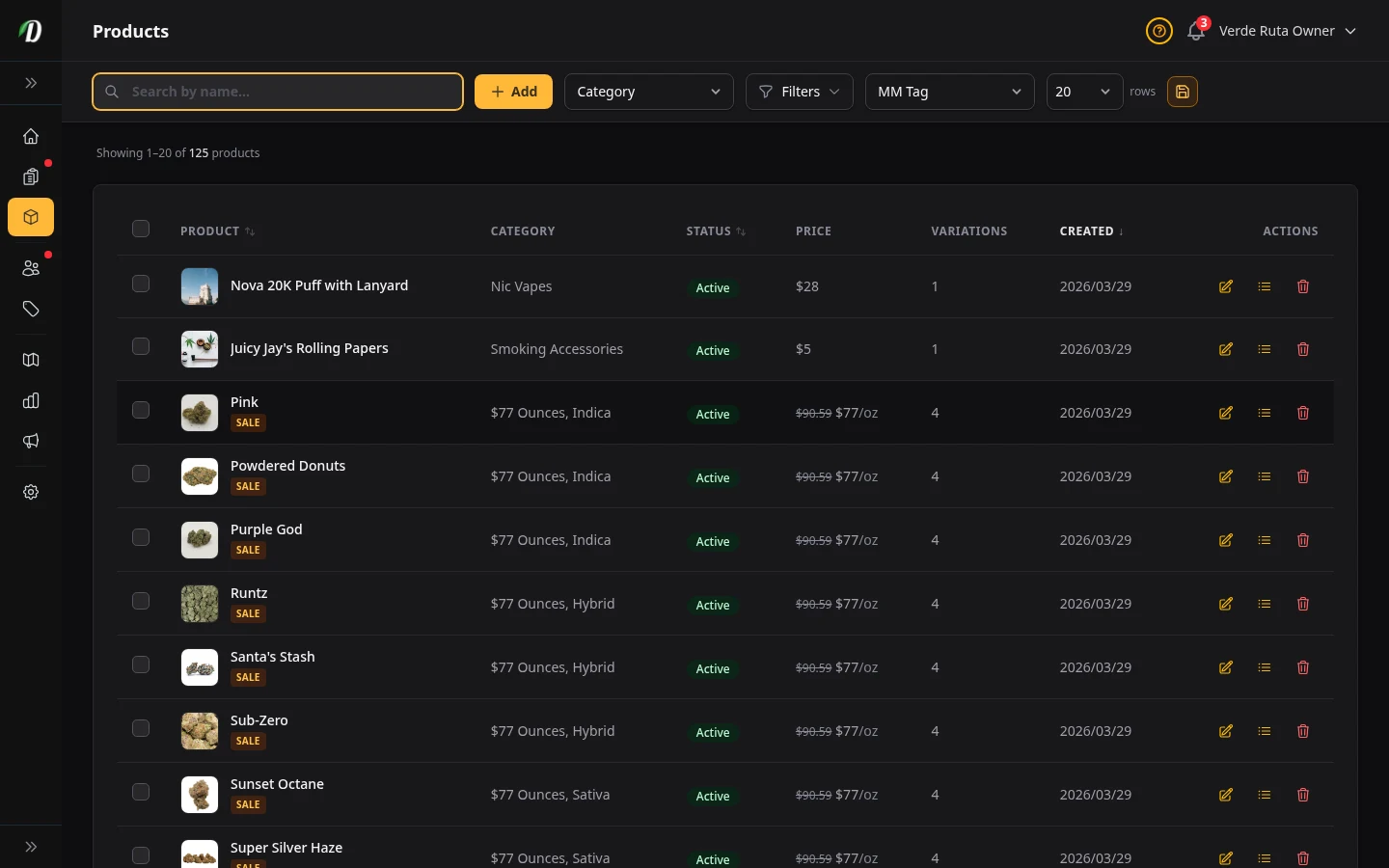
The Products page is where you manage your entire catalog. Each product can have inline pricing and variants (Simple, Weight, Unit, Variation × Weight, Variation × Unit), plus cannabis strain data that auto-fills from our database of 15,300+ strains. Filter by category, status, sale status, stock, or bundle tag. Each row shows an anchor Price — the heaviest weight tier for weight products, or a price range for unit products. Products on sale show the original price crossed out next to the sale price, plus an amber Sale badge.
Products appear in your storefront as soon as they're set to Active status and have at least one variation with a price.
Creating a Product
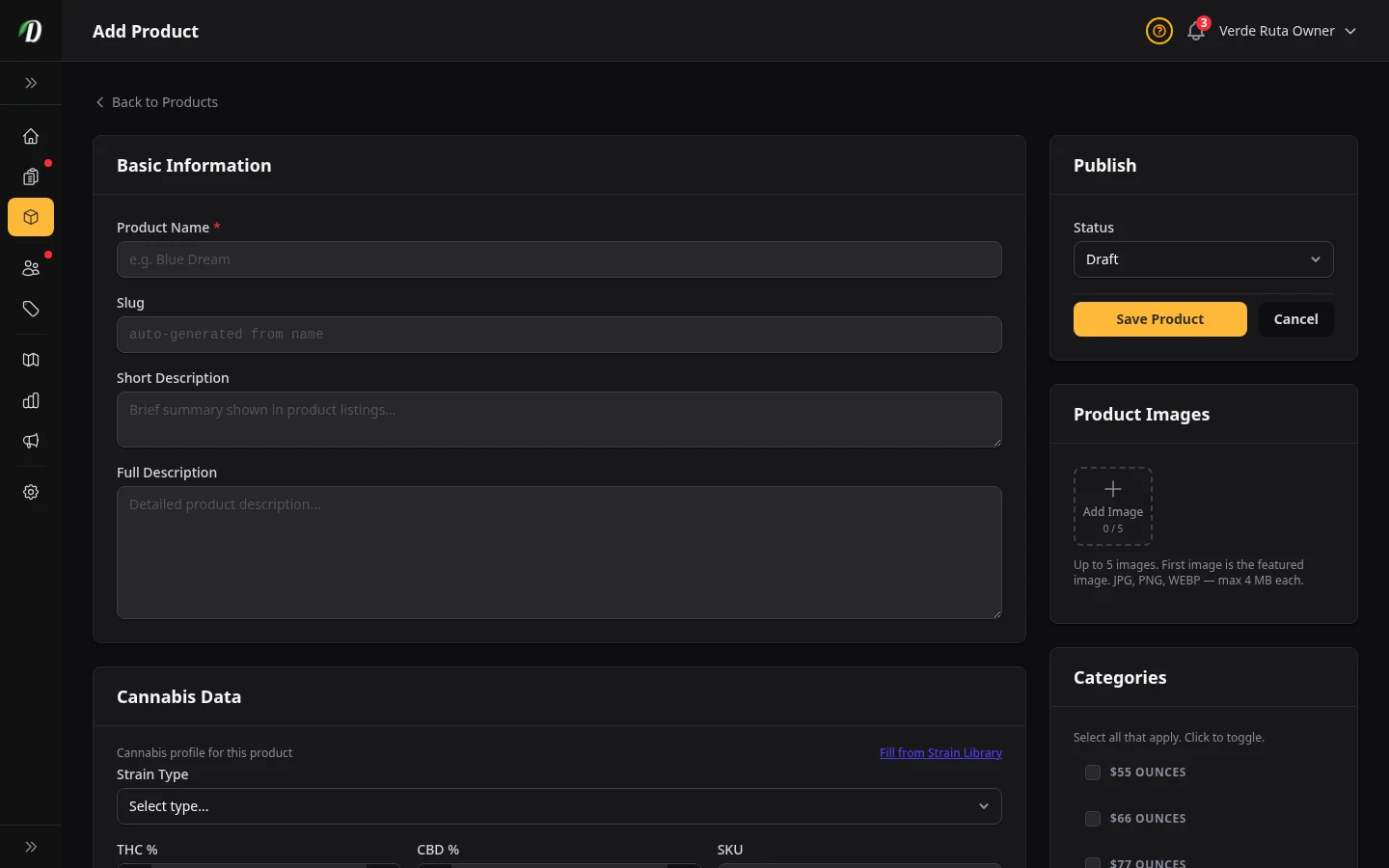
Click Create Product at the top of the products page. The form is divided into panels — work through each one from top to bottom.
- 1
Basic Information
Enter the Product Name, select a Strain Type (Indica, Sativa, Hybrid, or CBD), and write a description. The name is what customers see on your storefront. If it matches a known cannabis strain, DabDash will offer to auto-fill the cannabis data in the next step.
- 2
Cannabis Data
Fill in THC/CBD percentages, Indica/Sativa ratios, Rating (0–5), effects, and flavors. The Indica/Sativa percentages power the strain bar displayed on your storefront product cards and detail pages. Click Auto-fill from DabDash Catalog to auto-fill from our database of 15,300+ strains — a modal lets you choose which fields to overwrite. You can edit any auto-filled value before saving.
- 3
Publish Settings
The sidebar panel controls visibility. Set Status to Active for the product to appear in your storefront, or leave it Draft while you finish setting it up. You can also set a featured image here — upload a new file (JPG, PNG, or WebP), or click Choose from library to reuse one you already have and crop it square. See Media Library.
- 4
Category
Assign the product to a category such as "Flower" or "Edibles". Categories become navigation tabs in your storefront so customers can browse by product type. If you haven't created categories yet, go to Catalog → Categories first.
- 5
Pricing & Variations
Set pricing directly on the product form using one of the 5 pricing types. DabDash saves this as a hidden product-specific pricing structure under the hood, so you can finish product entry without leaving the page.
- 6
Pricing Structure (Optional)
In the sidebar, optionally link this product to a shared pricing structure. When linked, the product syncs its variations (sizes and prices) from the structure automatically — any changes to the structure propagate to all linked products. Choose "None" to manage pricing inline on this product only.
- 7
Flags
Switch Featured to show the product in your storefront's featured section. Switch Age Verification Required for compliance prompts on checkout and ordering surfaces.

Tip: Products won't appear in your storefront until they have Active status and at least one priced option.
Editing a Product
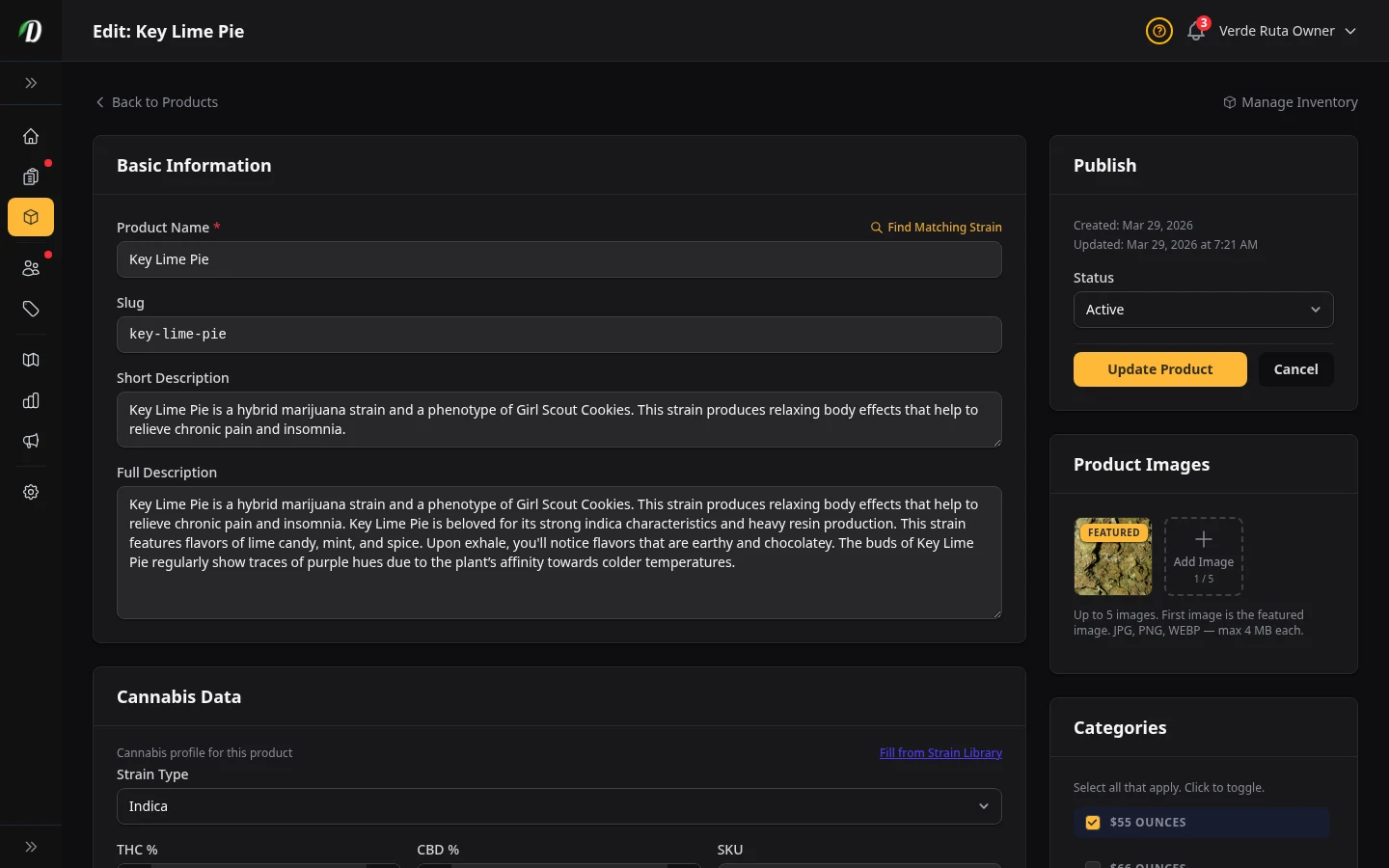
Click any product row on the products list to open the editor. All panels from the create form are present, plus a few additional options available only on existing products.
- Basic Information, Cannabis Data, Categories & Flags
- All fields work the same as during creation, including the new Indica/Sativa percentages and Rating fields. You can re-run strain matching at any time to refresh cannabis data — the modal lets you choose which fields to overwrite.
- Publish Settings (sidebar)
- Flip Status between Draft, Active, and Archived. Archived products are hidden from customers but remain in your catalog so you can reactivate them later. The featured image uploader is also here — drag-and-drop or click to upload.
- Pricing & Variations
- Update pricing inline with the same 5-type builder used on create. Changes save to the product's hidden pricing structure, so edits stay isolated to this product.
- Pricing Structure (sidebar)
- Link or unlink this product to a shared pricing structure. Linked products sync variations automatically when the structure changes. Switch to "None" to manage pricing inline on this product only.
- Danger Zone
- At the bottom of the edit page you will find the Delete Product button. Deleting is permanent and removes the product from all orders' line-item references. Use Archive from the Publish panel if you just want to hide it temporarily.
Featured Image
Upload a product photo or paste an image URL. The image appears on your storefront's product card and detail page. Accepted formats: JPG, PNG, WebP. Maximum size: 2 MB.
Bulk Actions
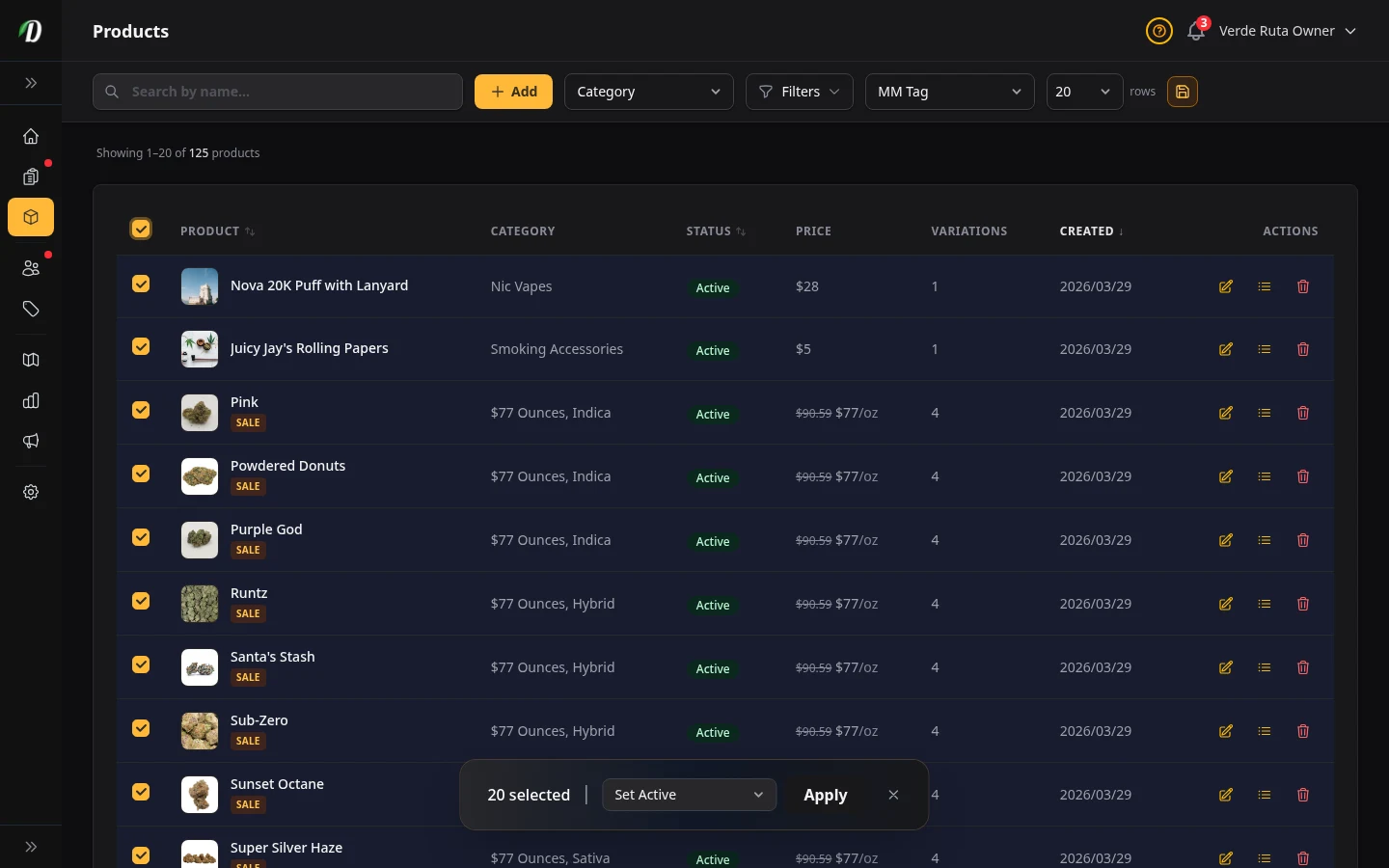
Select one or more products using the checkboxes. A floating action bar appears at the bottom of the screen with these options:
| Action | What it does |
|---|---|
| Activate | Sets selected products to Active — they appear in your storefront. |
| Archive | Hides products from storefront without deleting them. You can reactivate later. |
| Delete | Permanently removes selected products. This cannot be undone. |
| Apply Sale | Puts selected products on sale. Choose $ Off to subtract a fixed dollar amount from every variation price, or % Off to discount by a percentage. The original price is saved as a "compare at" price so the storefront can show the crossed-out original. |
| Remove Sale | Ends the sale on selected products. Restore prices puts the original prices back. Keep reduced makes the sale price the new regular price and clears the "compare at" price. |
| Update Categories | Assign categories to selected products. Choose Add to keep existing categories and add new ones, or Replace to swap to the selected categories only. Pick from a searchable dropdown that shows all your categories. |
| Auto-fill from Catalog | Matches selected product names against the strain database and fills in cannabis data. See Bulk Strain Enrichment below for details. |
Warning: Deleting products is permanent. Archived products can be restored, but deleted ones cannot.
Bulk Strain Enrichment

Click Enrich Strains to auto-fill THC/CBD percentages, Indica/Sativa ratios, rating, effects, and flavors for all your products. DabDash matches product names against our database of 15,300+ cannabis strains.
The process runs in two steps: first it matches names, then it fills in the data. You can review and confirm before saving.
SEO MAX — User Ratings Sync
If you have the SEO MAX add-on, each product's SEO card includes a User Ratings Sync field. Search for a strain name and link it — DabDash then keeps user ratings, reviews, and descriptions up-to-date automatically, feeding rich structured data into your JSON-LD schema so search engines and AI-powered search tools surface more trustworthy results.
Frequently Asked Questions
How do I add a product in DabDash?
Click Create Product on the Products page, enter the name, choose a pricing type (Simple, Weight, Unit, or Matrix), add at least one variation with a price, and set the status to Active. The product appears on your storefront immediately.
What pricing types does DabDash support?
DabDash supports five pricing types: Simple (one flat price), Weight (price per gram tier — 1g, 3.5g, 7g, 14g, 28g), Unit (price per pack), Matrix Weight (variations × gram tiers), and Matrix Unit (variations × unit tiers). Each maps to a different cannabis product format.
How do I put a product on sale in DabDash?
Edit the product variation and enter a Compare At price higher than the current retail price. DabDash automatically shows a Sale badge on that product in both your admin and on the customer storefront.
How do bulk product actions work in DabDash?
Check one or more products in the list and a bulk action bar appears at the bottom of the page. You can activate, deactivate, or delete all selected products in a single click without opening each one individually.