Billing & Subscription
Manage your plan, payments, trial expiry, and billing portal access.
Overview
Billing controls your dashboard access and subscription status. Licensed operators use this page daily to confirm renewal dates, add SEO MAX, or recover access after trial — without emailing support.
DabDash uses secure checkout for plan changes and ongoing subscription management. Plan changes, payment methods, invoices, and cancellations are all handled from the Billing page — owner-only, never visible to staff.
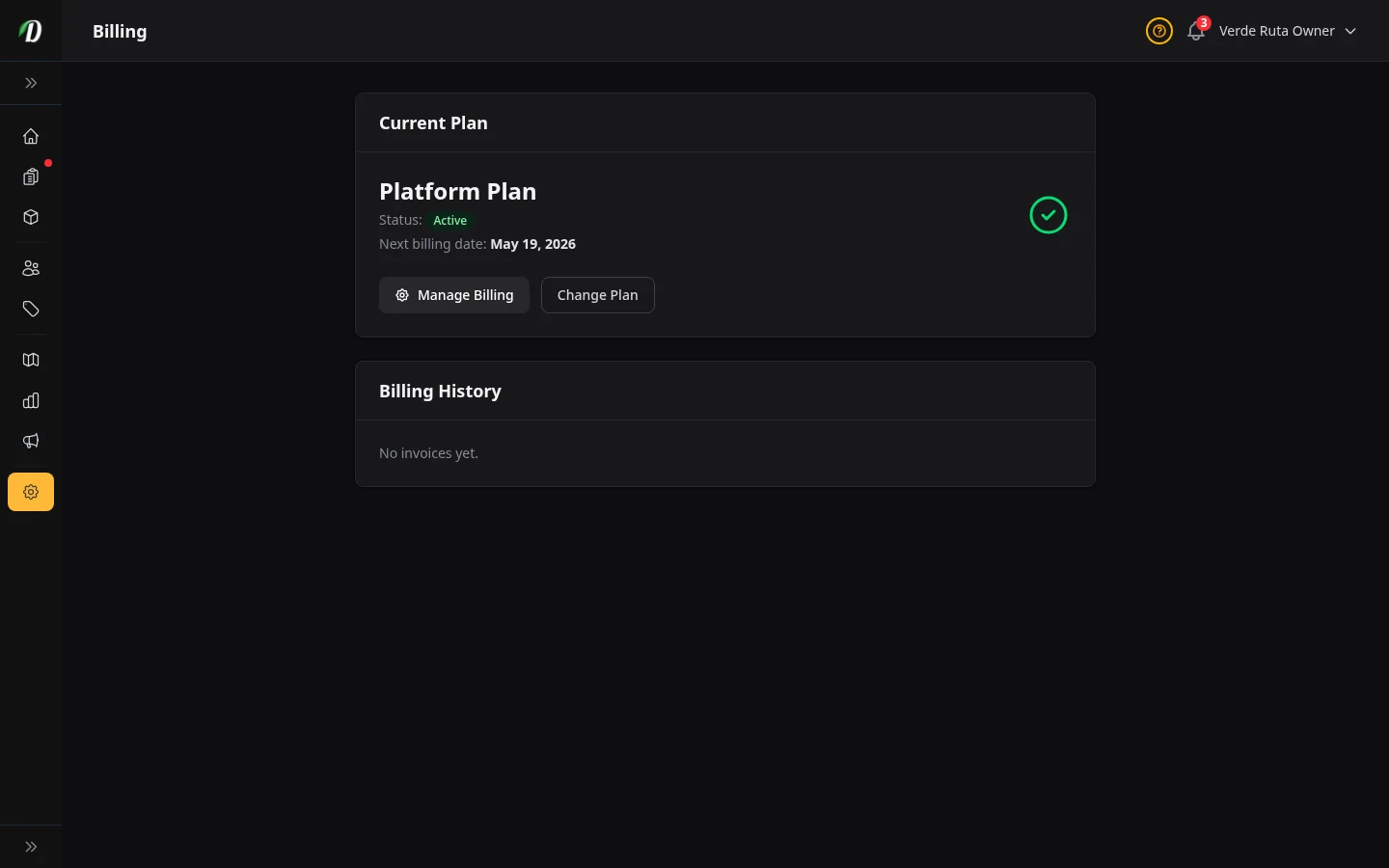
Step 1: Open Billing When You Need To Subscribe
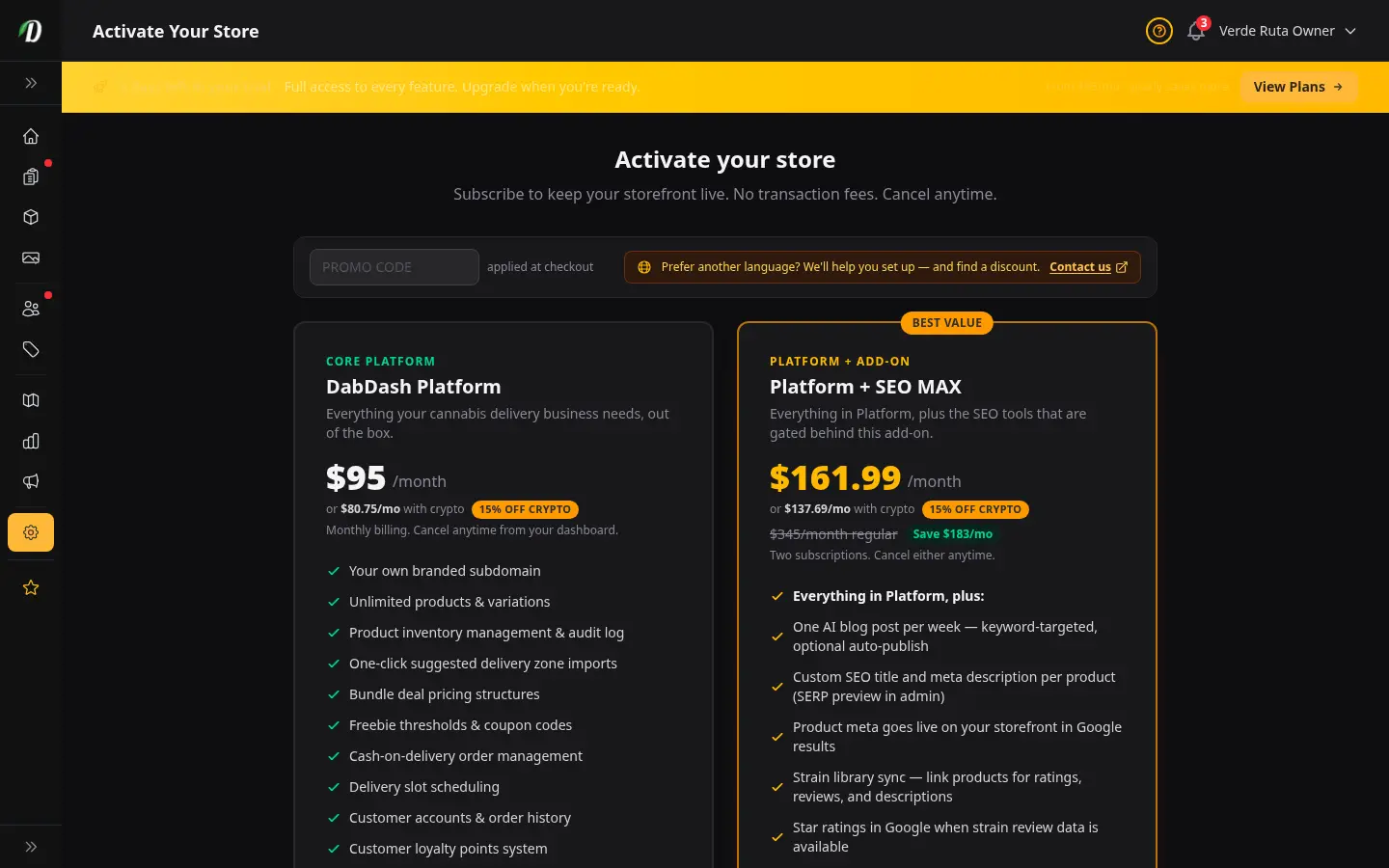
Open Billing from your sidebar. If your store is on trial or has no active subscription, this page is where you recover full admin access.
During trial, you can still manage the admin normally. Once trial expires without an active subscription, non-billing admin routes are gated until billing is restored.
Step 2: Choose a Plan
Click Change Plan or Upgrade Now to open the subscribe page. The available plan options are:
- DabDash Platform — core storefront and dashboard features.
- Platform + SEO MAX — core platform plus enhanced SEO tooling for Google Search.
Selecting a plan starts a secure checkout session. After successful payment, you are returned to Billing with an activation confirmation banner.
Prefer to pay with cryptocurrency? Click Pay with Crypto on the subscribe page to pay via USDT or USDC on BNB Smart Chain. Once the transfer is confirmed on-chain, your subscription activates automatically.
Using a promo code
If you have a promo code, enter it in the Have a promo code? box at the top of the subscribe page before you pick a plan. The discount is applied automatically when you choose a plan and start checkout — you'll see the reduced amount before you pay.
- One code applies to whichever plan you choose — pick the plan after entering the code.
- Some codes can be combined with the crypto discount and some can't. If a code can't be combined with crypto, you'll see a short message asking you to use card checkout or remove the code.
- If a code isn't valid for the plan or checkout you picked, you'll get a brief message and no charge is made — just adjust and try again.
Depending on the code, the discount may apply only to your first payment or to every renewal. The amount shown at checkout is what you'll be charged.
Crypto discount — save 15% when you pay with USDT or USDC
DabDash passes its payment processing savings back to you. Paying by card incurs card-processing fees; paying with crypto does not. So the crypto price is structurally lower — not a promotion, not a limited-time offer.
- Platform plan: $95.00/mo by card → $80.75/mo with crypto
- SEO MAX add-on: $66.99/mo by card → $56.94/mo with crypto
- Platform + SEO MAX bundle: $161.99/mo by card → $137.69/mo with crypto
The discount applies to the first month and every renewal. Crypto renewals follow the same on-chain confirmation flow as initial activation.
Pay yearly and save even more
When you pay with crypto you can choose a yearly term instead of monthly. One payment covers a full twelve months — no need to send a transfer every month — and you save an extra 15% on top of the crypto discount.
- Platform plan: $823.65/yr with crypto (about $68.64/mo)
- Platform + SEO MAX bundle: $1,404.45/yr with crypto (about $117.04/mo)
Pick Yearly on the crypto payment screen to see the exact amount before you send.
Step 3: Manage an Active Subscription
With an active subscription, Billing shows your plan, current state, and when the period ends. Every period starts with a fresh checkout — re-enter your card or pay with crypto (nothing stays on file). From Billing you can change plans, download invoices, and cancel.
Step 4: Resolve Past Due Payments Quickly
If payment fails, Billing enters Past Due and highlights an Open checkout action. Pay by card or crypto through secure checkout immediately to avoid interruptions in your admin access. If card payments are temporarily offline, use crypto.
Subscription States Reference
- Trial Active
- You can access all admin pages while your trial is active. Billing shows days remaining and prompts you to subscribe.
- Active / Trialing Subscription
- Billing shows your plan name, status badge, and period end date. Pay again via checkout before that date — card or crypto. Change plan or cancel from Billing.
- Past Due
- Your most recent period ended without a successful checkout. Billing presents an Open checkout action. Pay through secure checkout (card or crypto) to avoid admin interruption.
- No Trial + No Active Subscription
- Dashboard routes are gated until you subscribe again. Billing pages remain accessible so you can recover access.
- Pending Crypto Payment
- You have initiated a crypto payment that hasn't been confirmed on-chain yet. Billing shows a waiting state with the wallet address and amount due. Your subscription activates once the transfer is confirmed.
What Happens to Your Storefront
Billing affects dashboard access, but your storefront remains online for customers. Customers can still browse and place orders even if your subscription is expired.
Operationally, this means you should restore admin access quickly to avoid delays in order management, inventory updates, and delivery operations.
Managing Your Billing
- Open Billing in your dashboard.
- Choose the action you need — update payment method, review invoices, or change your plan.
- Complete the change in secure checkout when prompted.
- Return to DabDash and refresh Billing to confirm updated status.
Billing History
The Billing page also shows a Billing History table of your past invoices — each with its date, invoice number, amount, and status (Paid, Unpaid, or Void). Download a PDF of any invoice for your records, and if an invoice is unpaid you can pay it directly from the row.
Frequently Asked Questions
How much does DabDash cost per month?
$95 per month, billed monthly with no annual contract. There is a 14-day free trial — no credit card required. DabDash charges zero transaction fees on your orders, so you keep 100% of your sales revenue.
Does DabDash have a free trial?
Yes — DabDash includes a 14-day free trial with full access to every feature. No credit card is required to start the trial. Your store goes live immediately so you can start accepting real orders right away.
How do I cancel my DabDash subscription?
Go to your billing page and click Manage Subscription, then confirm in secure checkout. Cancel from there and your store stays active until the end of the current billing period.
How do I use a promo code on DabDash?
Enter your code in the "Have a promo code?" box at the top of the subscribe page, then choose a plan. The discount is applied automatically and you see the reduced amount before you pay. Some codes can be combined with the crypto discount and some cannot — if a code cannot be combined with crypto, use card checkout or remove the code.